company logo

Help center

Contact Support Team
Sembly 🇺🇸Sembly 🇪🇺
All collectionsHow-to ArticlesWorkspace settingsCustom vocabulary

Custom vocabulary

Iryna ·October 22, 2026
success icon
PLAN: PRO | MAX | ENTERPRISE

LEGACY PLAN:  PROFESSIONAL | TEAM | TEAM PLUS

If you often use specific names, proper nouns, jargon, acronyms, and other company terms that Sembly mistranscribes, you can add them to your Vocabulary to enhance the transcription and the AI analytics quality.

info icon
Workspace members on Team, Pro, MAX, and Enterprise plans do not have access to edit this feature. You need a workspace admin role to access Custom Vocabulary
warning icon
Custom Vocabulary feature is currently available only for the English language.

To add new terms, follow the steps below:

  1. Click the gear icon on the bottom left next to your avatar and select Settings

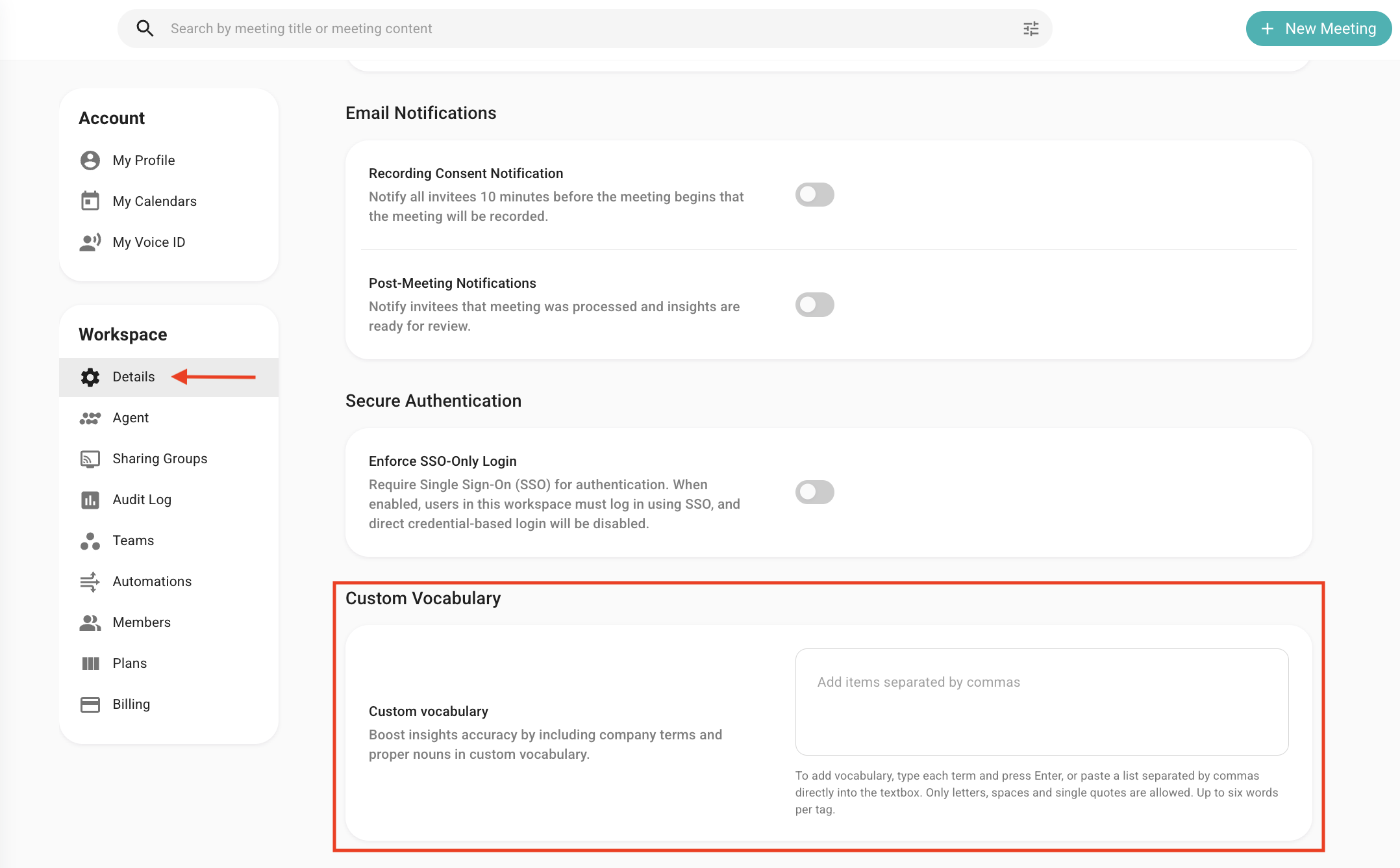
  2. Select Details in the context menu on the left

  3. Scroll down to Custom Vocabulary 

  4. Type a term and press Enter 

  5. Or, you can copy a list of terms, separated by commas, directly into the textbox. You can add up to six words to one term

  6. Press the cross next to each word to delete the term you don't need 
info icon
The unique words, rare names, company titles, abbreviations, and addresses that are absent from Sembly's vocabulary may be recognized with uncertainty.

Did this answer your question?
😞
😐
😁

